Managing Users
Open Users in TAP to add teammates, assign roles, reset 2FA, and disable people who leave.
User List
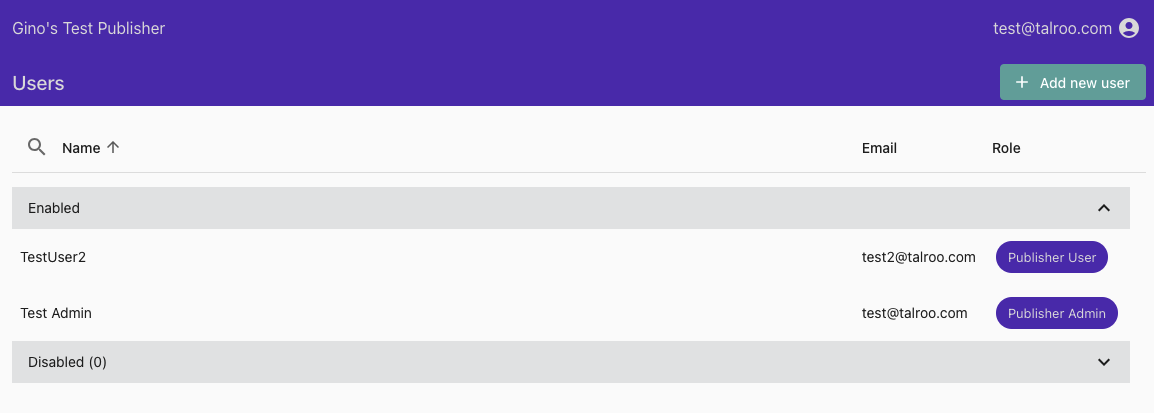
Users are grouped into Enabled and Disabled sections. Click any user to open their profile.
Roles
| Role | Access |
|---|---|
| Publisher Admin | Full access: view analytics, configure feeds, and manage users |
| Publisher User | View analytics and feed configuration; cannot add or remove users |
Adding a User
Click + Add new user at the top right of the user list.
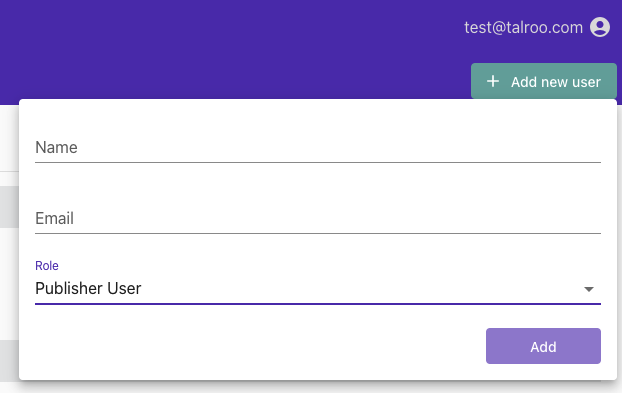
Hit Add. The new user will receive an invitation email, and will be prompted to create a new password on first login.
User Profile
Click a user in the list to open their profile.
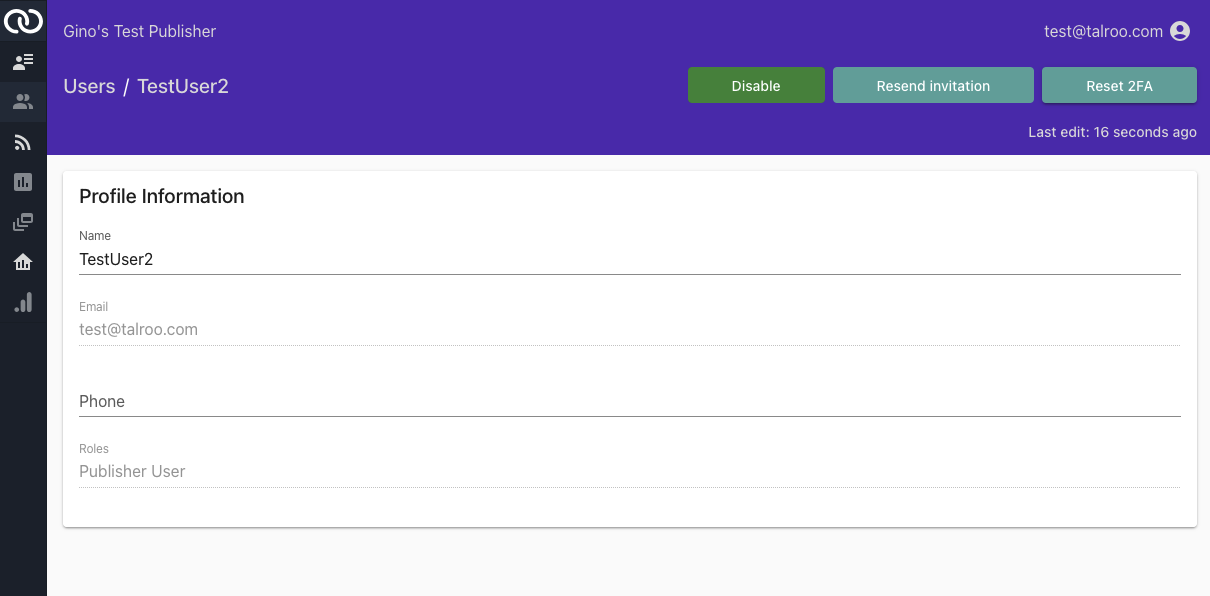
From the profile you can change Name, Email, Phone, and Role. Or you can Disable users and then Delete their account.
Resend the invitation if the email was missed or the link expired.
Reset 2FA if someone lost their phone or authenticator app; they'll re-enroll on their next login.